
Workflow Emails 101
Everything you need to know about the “Send Email” step in Flodesk Workflows
In Flodesk, you can automate your emails beautifully and efficiently by adding them directly into a workflow. Whether you’re welcoming new subscribers, delivering freebies, or running a sales sequence, the Send Email step lets you plug in a polished email exactly when it’s needed. And now, you can also set a cutoff date so time-sensitive emails are never sent after they're relevant.
Two Ways to Add Emails to a Workflow
1. Duplicate an Existing Email
You can reuse any email from your Emails dashboard.
How:
In your workflow, click + Add step > Send Email
Select Duplicate an existing email
Click Make a copy to clone the email into your workflow
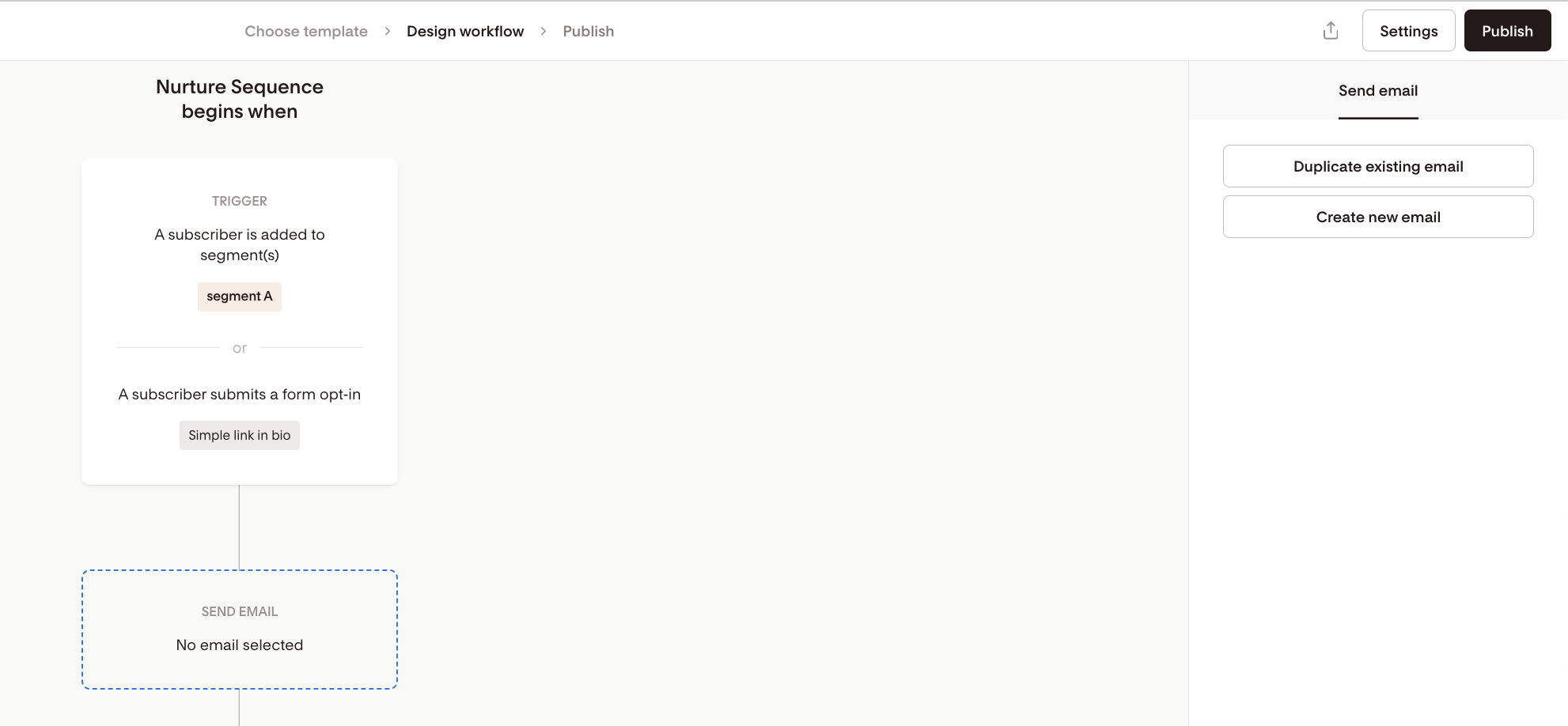
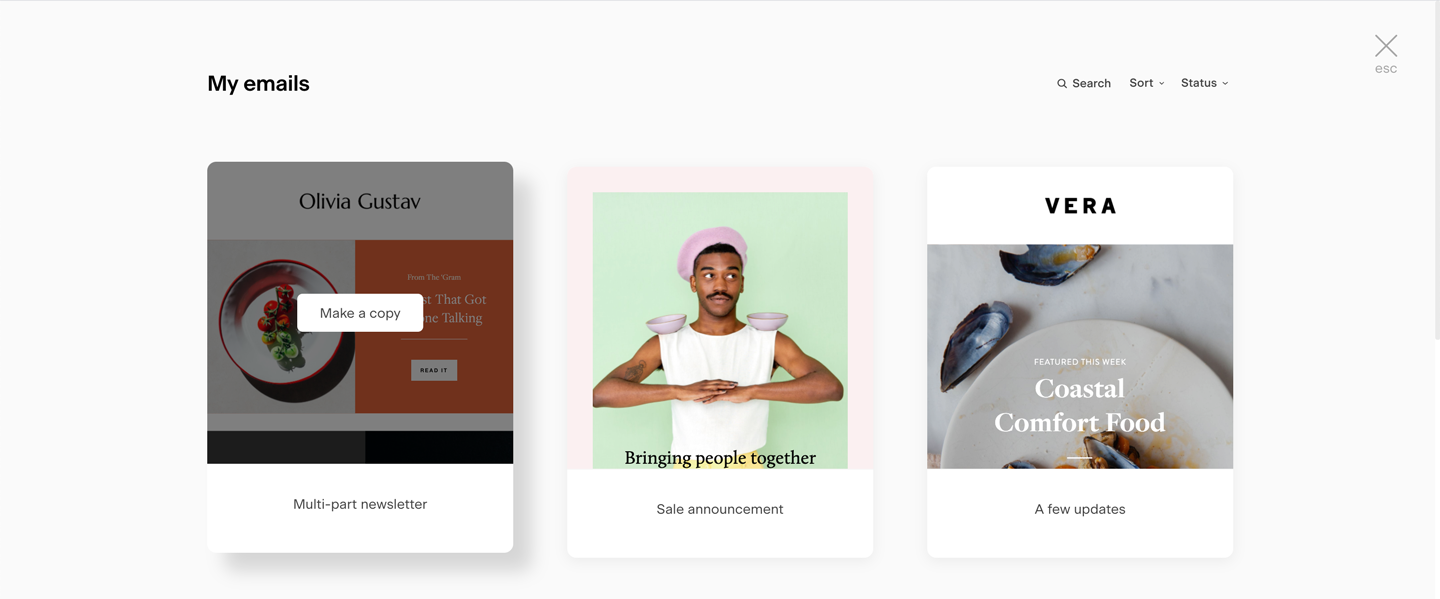
Important notes:
You’re pulling in a copy, not the original
Changes made in the workflow email don’t affect the original on your Emails dashboard
Likewise, edits to the original email won’t update the copy in your workflow
You can fully edit the workflow version by clicking Edit on the email thumbnail
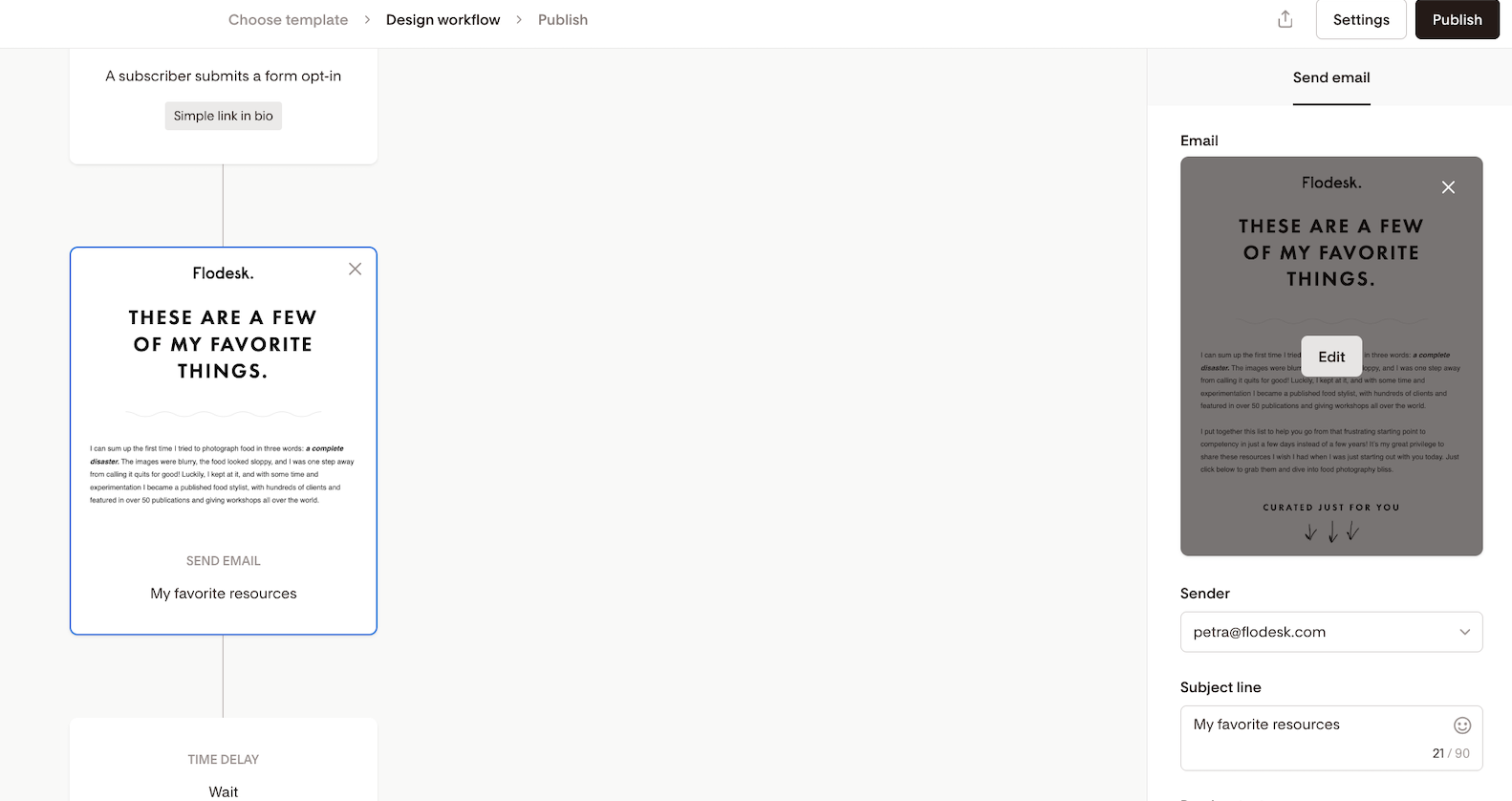
Best for: Reusing emails you’ve already created elsewhere
2. Create a New Email
You can also build an email directly inside your workflow.
How:
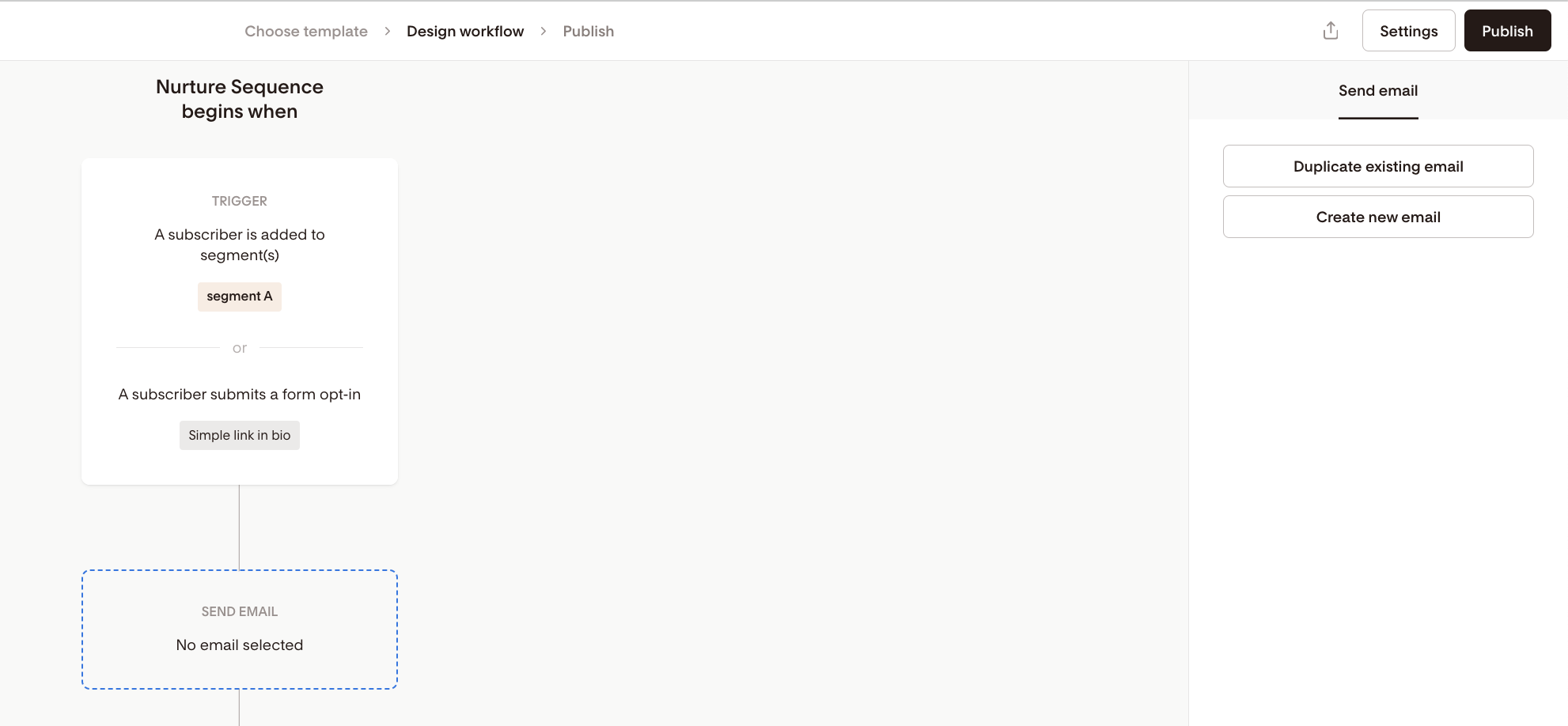
Click + Add step > Send Email
Select Create new email
Design from scratch or choose a template from the gallery
Good to know:
This email is autosaved inside the workflow
It won’t appear in your Emails dashboard
Save a Workflow Email as a Favorite Template
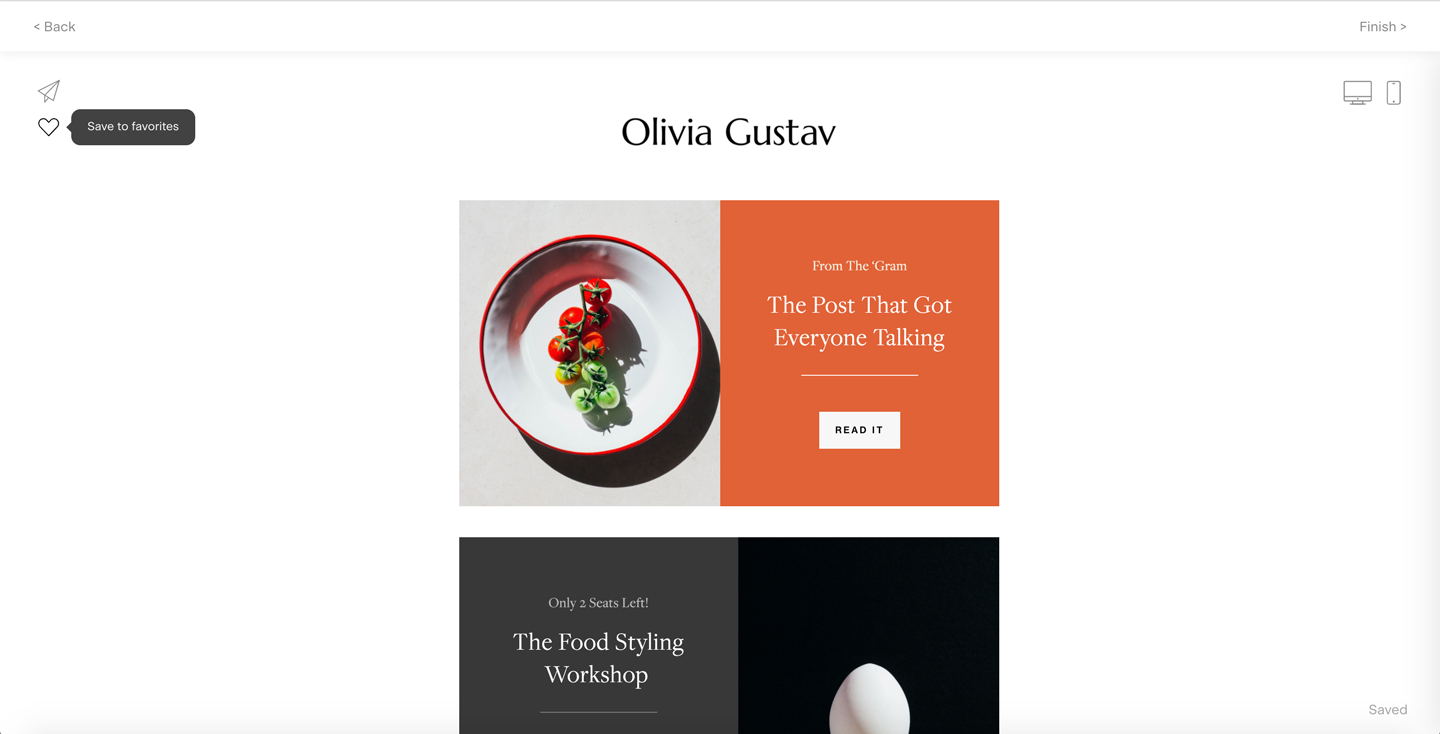
Love the email you just created in a workflow? You can save it as a template for future use.
How:
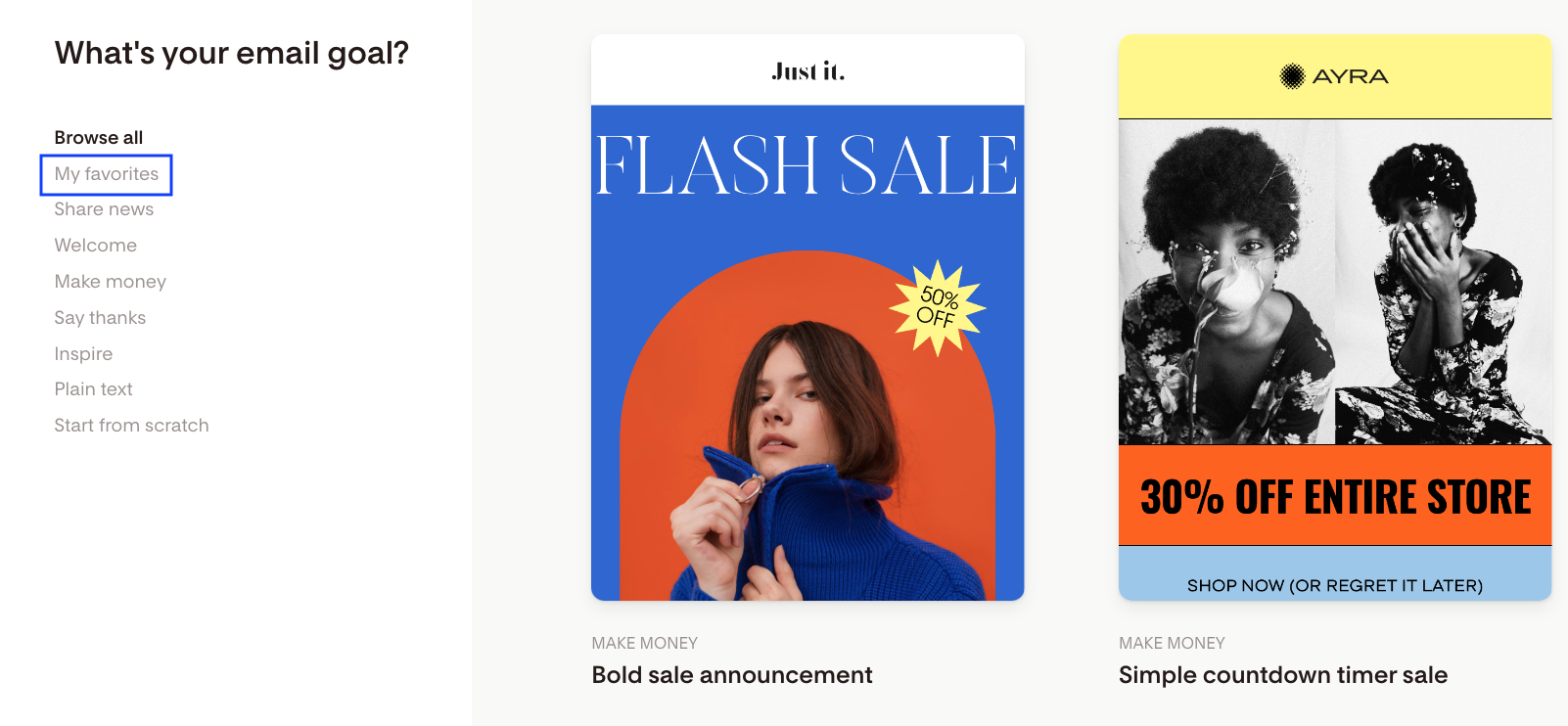
Click the heart icon in the top left corner of the email builder
This adds it to My favorites in the template gallery
You’ll be able to reuse this favorite when:
Creating a new email in Emails
Adding a new email step in another workflow
Skip an email after a specific date
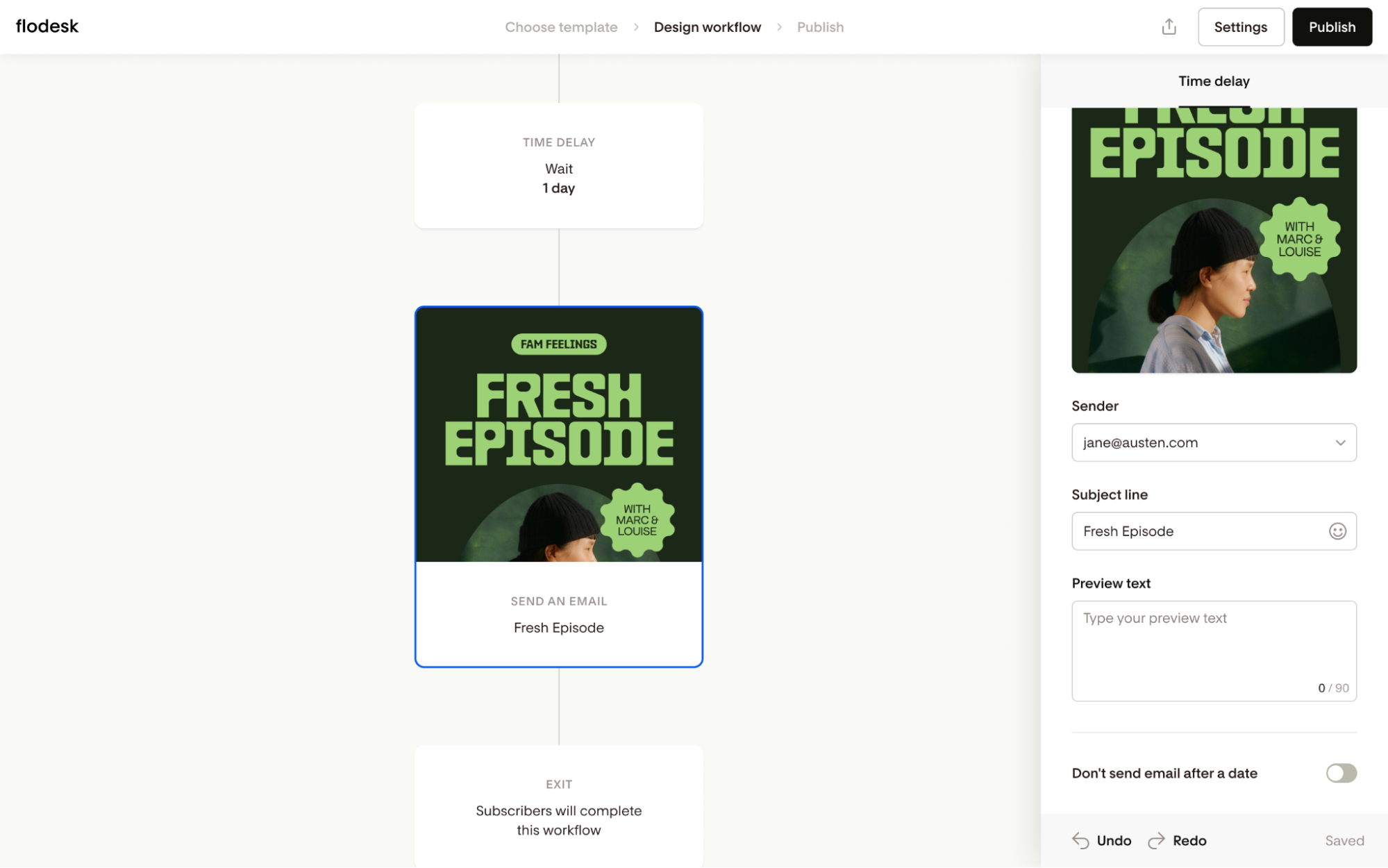
Running a seasonal campaign or a time-limited launch sequence? You can set a cutoff date on any Send Email step so that subscribers who arrive after that date will skip that email and move on to the next step automatically.
This prevents late-joining subscribers from receiving emails that are no longer relevant—like a Black Friday promo arriving in December.
How:
Click the Send Email step you'd like to add a cutoff to
Toggle on Don’t send email after a date
Use the date and time picker to set your cutoff
Select the appropriate timezone
Wait until your changes autosave
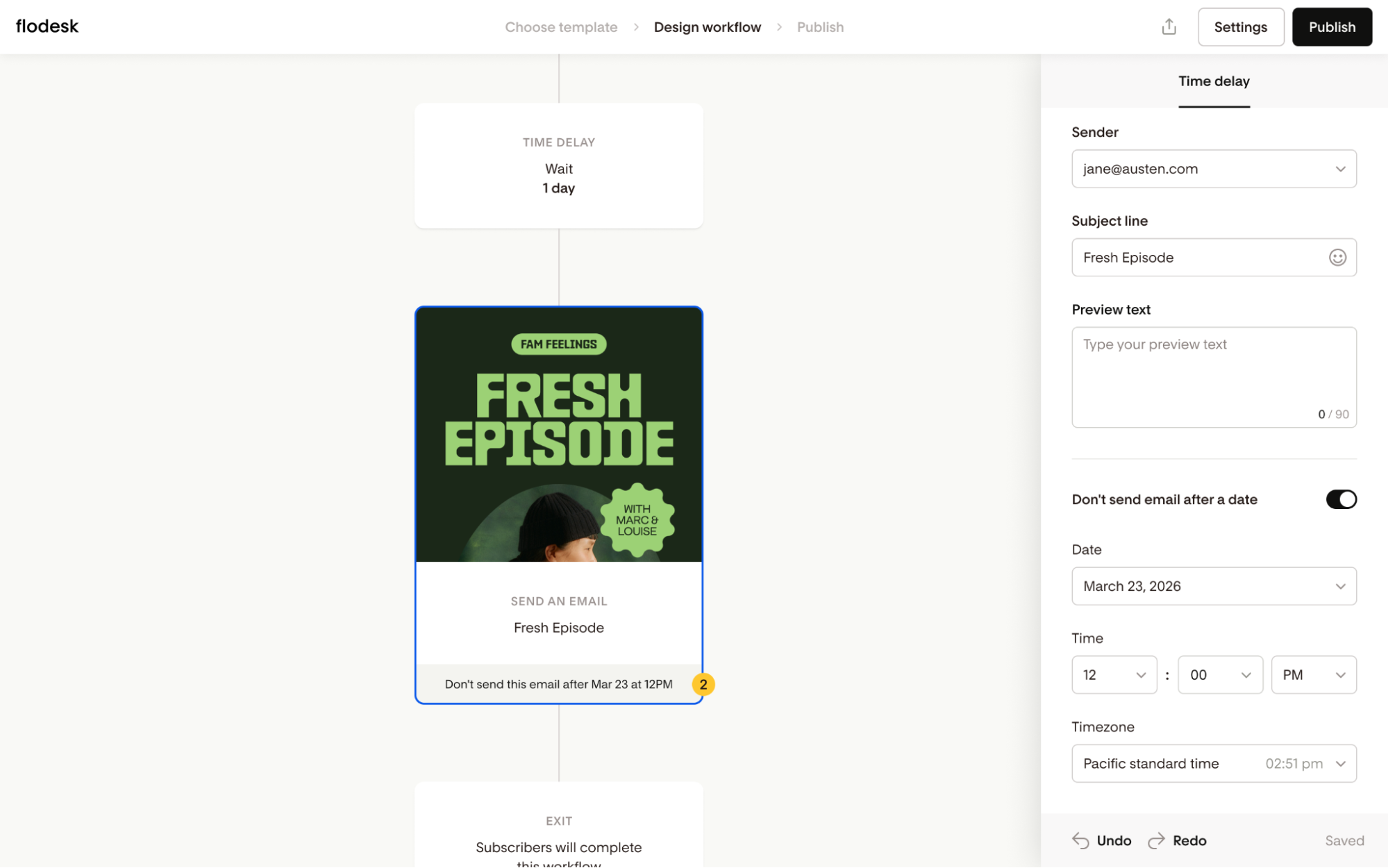
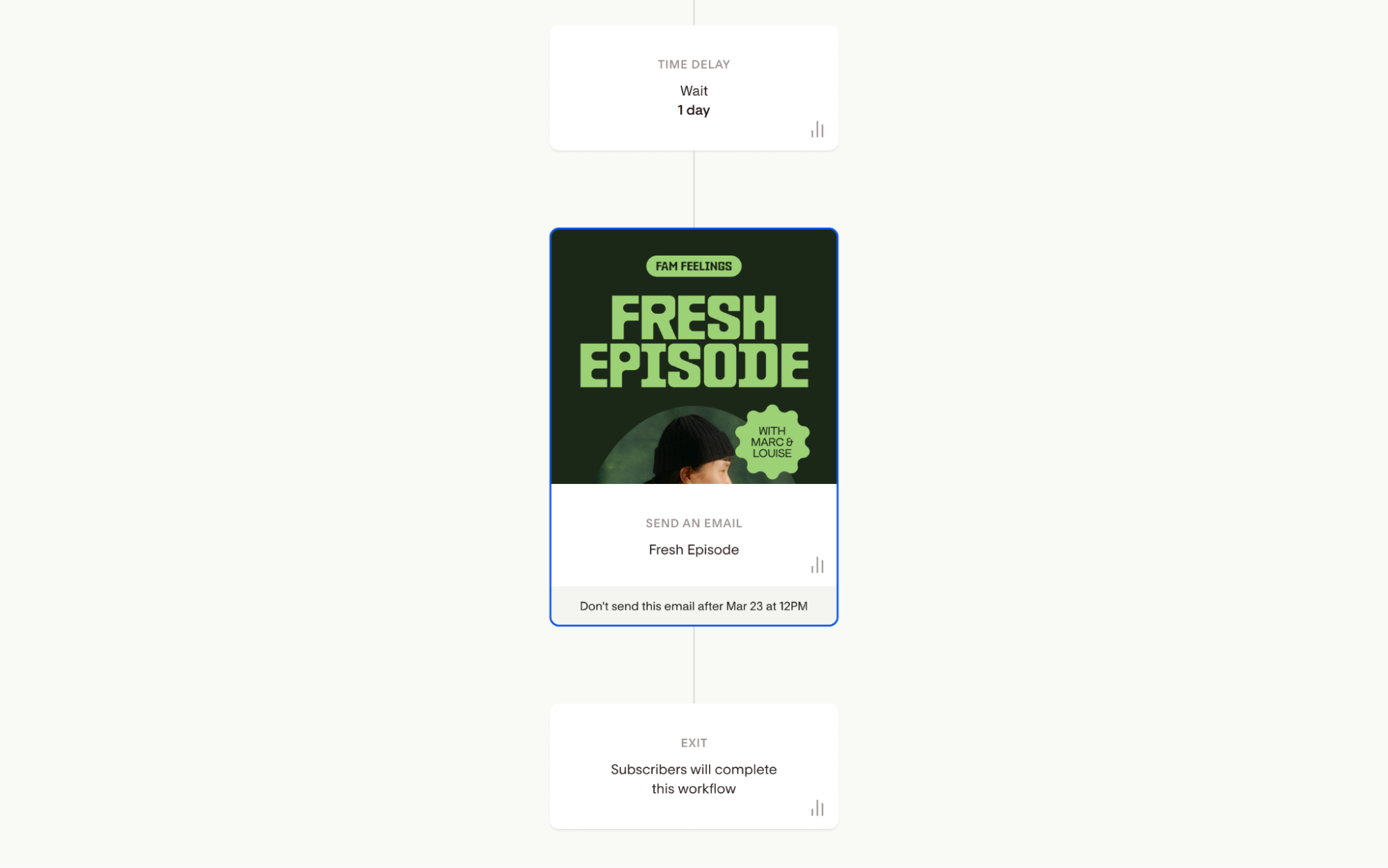
Once set, the Send Email step on the workflow canvas will show a visual indicator so you can see at a glance that a cutoff is configured.
How it works:
Subscribers who reach the step before the cutoff date will receive the email as expected
Subscribers who reach the step after the cutoff date will skip that email and continue to the next step immediately—no delay, no interruption
Best for: Seasonal promotions, launch sequences, cohort-based workflows, webinar reminders, or any email tied to a specific date or window.
How to View Emails in a Published Workflow (Without Pausing It)
Want to see what your email looks like in a live workflow, but don’t want to unpublish?
Here’s how:
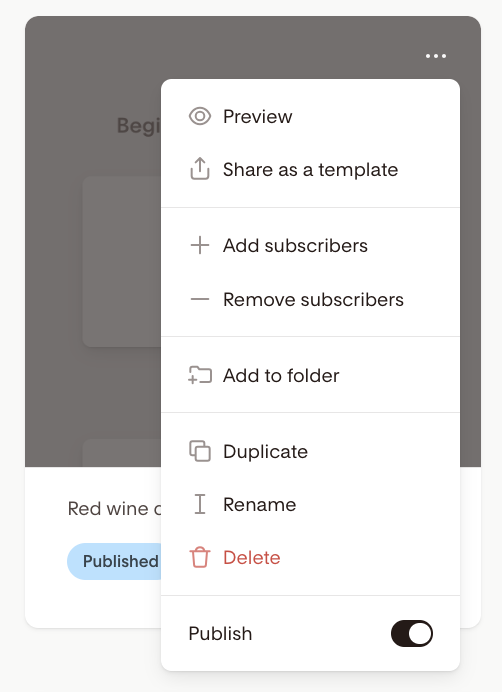
Go to your Workflows dashboard
Hover over the published workflow's card and click the three dots (⋯)
Select Preview
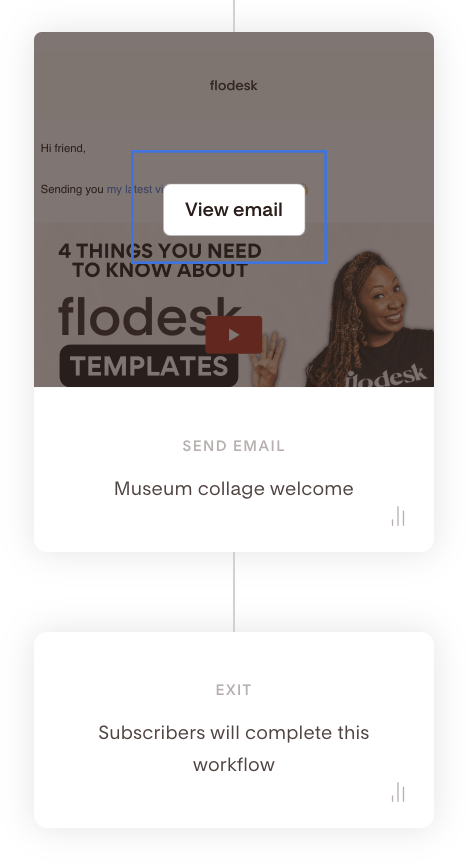
Hover over the email step and click View email
Your email will open in read-only mode in a new tab, allowing you to review the design and content.
To make edits, you’ll need to pause (unpublish) the workflow.
Summary
Action | What to use |
Reuse an email you've already created | Duplicate an existing email |
Design something from scratch | Create new email |
Save and reuse a design | Click the heart icon to add it to Favorites |
Preview a live workflow email without editing | Use the Preview > View email option |
Stop sending an email after a set date | Toggle on “Don’t send email after a date” |
FAQs
Can I use the same email in more than one workflow?
Yes. Use the Duplicate an existing email option in each workflow where you want to use it. Each workflow gets its own independent copy, so changes in one won't affect the others.
If I edit the original email on my Emails dashboard, will the workflow version update too?
No. Once you duplicate an email into a workflow, the two are completely separate. Any changes you make to the original won't carry over, and edits inside the workflow won't affect the original either.
Will a new email I create inside a workflow show up on my Emails dashboard?
No. Emails created directly inside a workflow are saved within that workflow only and won't appear in your Emails dashboard.
Can I use a workflow email as a template for future emails?
Yes. While you're inside the email builder, click the heart icon in the top left corner to save it to My favorites. You can then select it as a starting point when creating new emails or adding email steps to other workflows.
Can I edit an email in a live (published) workflow?
You can preview emails in a live workflow without pausing it, but to make edits you'll need to pause (unpublish) the workflow first. Once you've made your changes, make sure to republish it.
What's the difference between previewing and editing a workflow email?
Previewing lets you view the email in read-only mode in a new tab. Nothing can be changed. To edit, you need to unpublish the workflow, make your updates, and then publish it again.
What happens to a subscriber when an email is skipped?
They move on to the next step in the workflow immediately. There's no delay or interruption to their journey.
Can I set a skip date on multiple emails in the same workflow?
Yes. You can configure a cutoff date on as many Send Email steps as you'd like within a single workflow.
Does this work with the "apply date to any year" delay setting?
The skip date option is separate from the delay settings in your workflow. It applies only to the specific Send Email step where you've enabled it.
Can I use the skip date to reroute subscribers into a different workflow?
Not at this time. This feature is designed to skip irrelevant emails and keep subscribers moving forward, without branching or rerouting logic.
Will I know how many subscribers skipped an email?
Reporting specific to skipped emails isn't available yet, but may be added in a future update.